Documentation
Guideline to make the most of the web app
Welcome to Echo Service
The web app is designed to streamline your estimates and field service operations. With the Echo Service platform, you can efficiently manage job requests, create estimates, generate invoices, handle purchase quotations, and much more! All from a single, easy-to-use interface. Say goodbye to juggling multiple tools because your solution is here!
Create your account
Visit our website and sign up for an account. After subscribing, you will go through a quick setup process where you can configure your company settings, import customer data, and create accounts for your team members.Try it for free
We offer a free trial that you can access anytime, anywhere. It is a great way to explore the features and get a feel for how everything works. Just click "Access Trial" in the navigation bar and log in. No payment or credit card required.Set up your company
Go to Settings → Companies to enter your company name, address, and logo. This information will appear on all estimates, invoices, and portal pages that your customers see.Add your team
Go to Settings → Users to create accounts for your staff. Assign each person the right access level so they only see the parts of the app relevant to their role.Start your first job
Once your setup is done, head to Job Requests and create your first job. From there, the platform will guide you through the full flow: estimate → field service → invoice → payment.
Basic Actions
Once you have successfully registered and logged in, the very first thing to do is get familiar with the layout. Or you can play around in our trial server for free.
Navigate the app
On the top-left of the screen, you will see a box icon (the apps grid). Click it to reveal all available navigation menus. this is how you switch between Job Requests, Estimates, Field Services, Inventory, Settings, and more.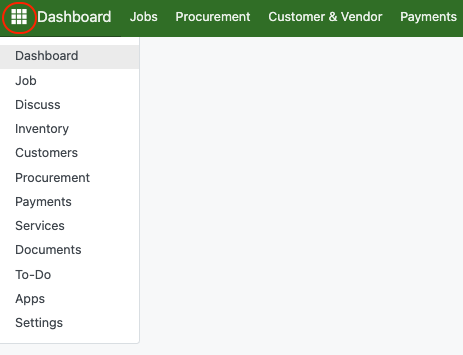
Profile and logout
On the top-right of the screen you will find your profile avatar and a logout button. Click your avatar to update your profile or change your password. Click Logout to securely sign out.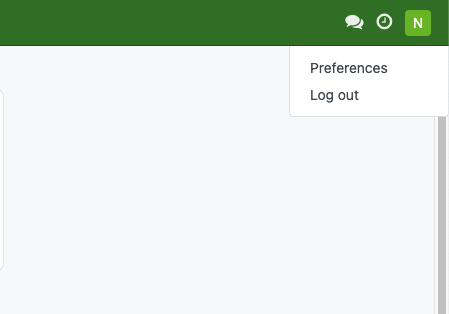
Open the chat (Discuss)
The platform includes a real-time chat feature that lets everyone communicate directly or within channels. To open the full chat interface, go to Menu → Discuss.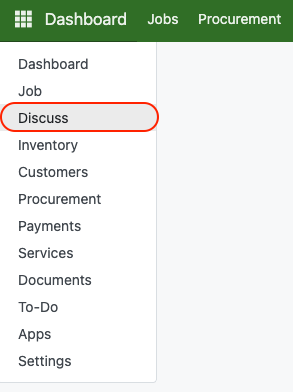
On the left panel, you can create channels and invite people to collaborate, or send direct messages to any team member.
Conversations appear in the main panel on the right.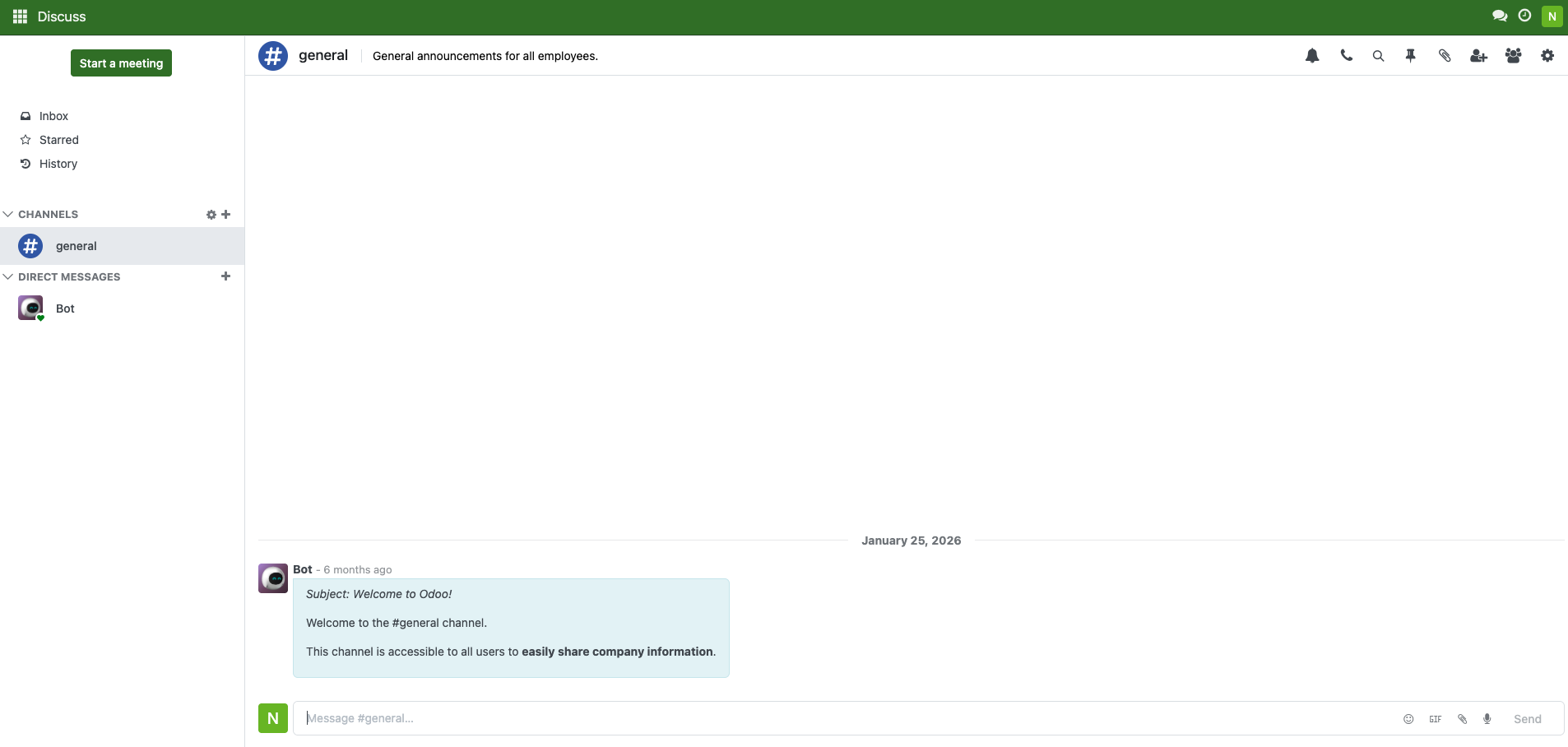
Quick-access chat
For faster access, click the conversation bubble icon in the top-right corner of any screen. This opens a mini-chat panel so you can see your latest messages without leaving the page you are on.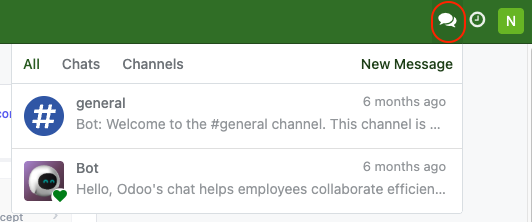
Onboarding
The Onboarding process can be seen inside the Dashboard. Initially, you will see the floating checkbox on the top to helps you navigate and makes sure everything is set correctly.
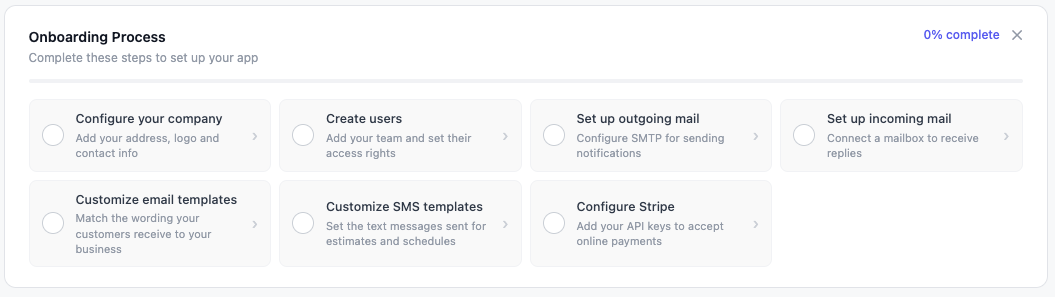
Configure Company
You can set your company info, such an address, phone and the logo here.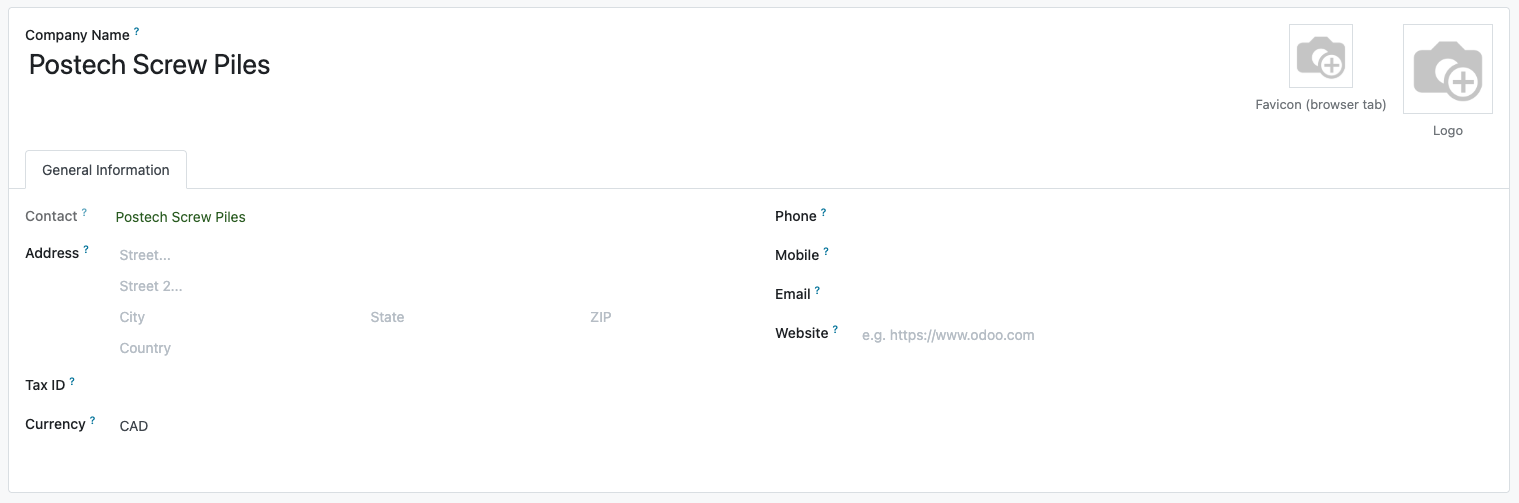
Create Users
You can set an unlimited number of users who can access your internal website.
Set Up Outgoing Mail
Outgoing Mail connects the Platform to an email provider (like Gmail or Outlook) so the system can send emails to customers. This will let the Platform send invoices, purchase orders, estimates from a button click.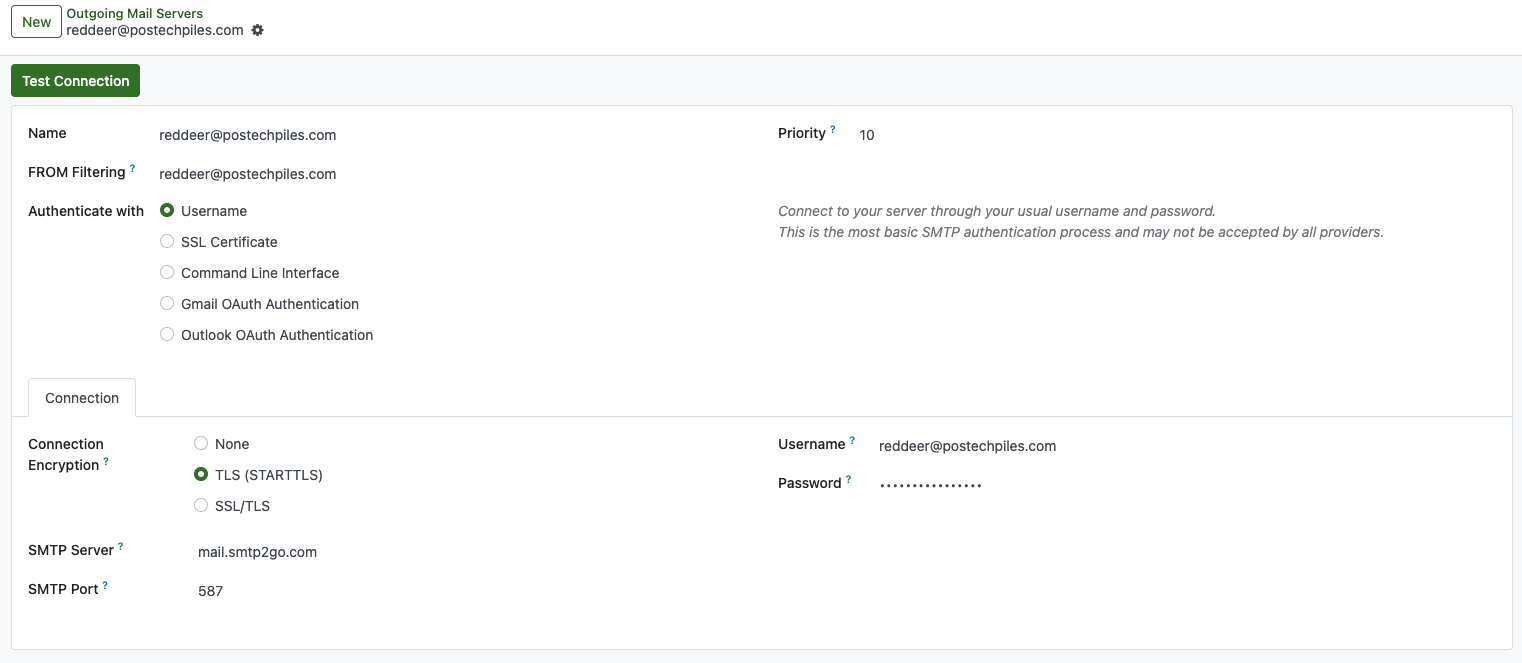
For @postechpiles.com emails: Because Microsoft email accounts require complex configurations and impose strict sending limits, system emails for this domain are routed through SMTP2GO.
For other email addresses: If you are using a Google email, you can connect directly without SMTP2GO. Set the SMTP Server to
smtp.gmail.comusing Port465. Instead of your regular password, generate and use a Google App Password from your Google Account Security page.
Set Up Incoming Mail
Incoming Mail routes replies to system emails (like estimates and invoices) directly into Odoo's message thread so you never miss a customer response.
How to Set It Up:Google / Gmail Users:
Server Type: IMAP
Server Name:
imap.gmail.comPort:
993Username: Your full email address
Password: Your 16-character Google App Password
postechpiles.com(Microsoft) Users:Microsoft requires specific IT security permissions.
Set Up Stripe
We use Stripe which are used as a payment gateway to accept online credit/debit card payments for estimate's down payment and invoices.
1. Click Set Up Stripe on the dashboard to be redirected to the Stripe setup page. (Make sure you already have a Stripe.com account).
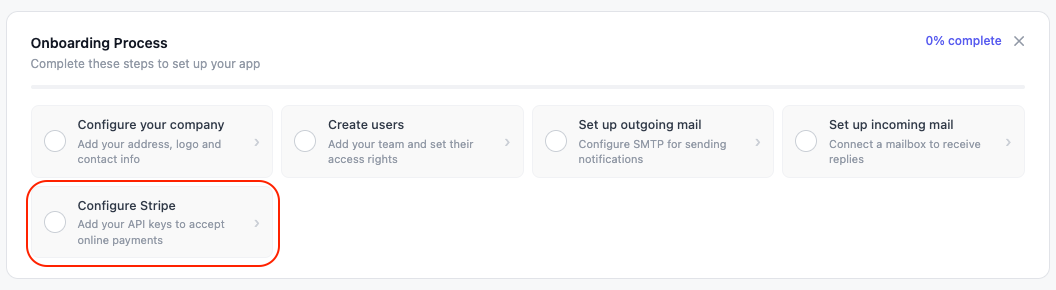
2. Open your Stripe Dashboard and navigate to Developers > API Keys (located at the bottom left of the screen).
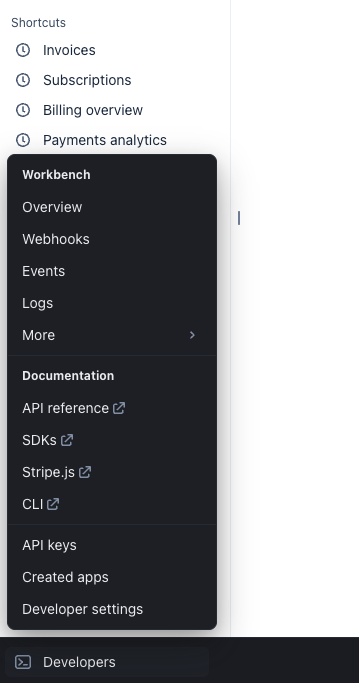
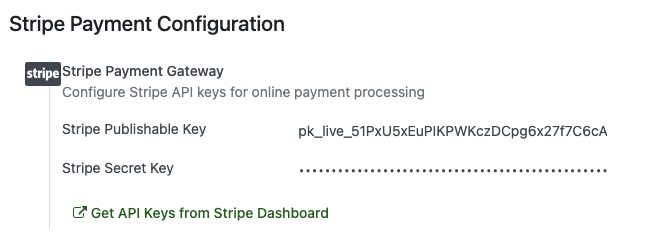
3. Copy the Publishable Key and Secret Key, then paste them into the platform. Remember not to share secret key to anyone.
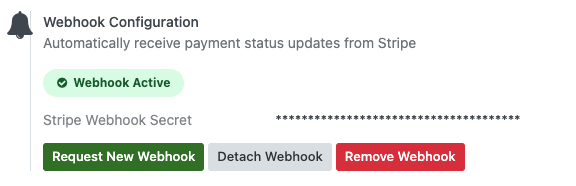
4. Click Save, then click Request Webhook. A new Stripe Webhook Secret Key will automatically added.
Customer payments will go directly into your Stripe account balance. To transfer funds to your actual bank account, make sure to add your bank details in your Stripe Dashboard Settings.
Email & SMS Templates
When you send estimates, invoices, post-job emails, scheduling SMS, or follow-ups, the body of each message comes from an editable template. Templates use {{ }} tags that get replaced with real values at send time, so the same template fits every job and every customer. Anything wrapped in double braces (for example {{ object.name }}) is a placeholder. At send time, the platform replaces it with live data from the job, the sender, or the company. Keep the braces, keep the spelling exact, because a missing dot or typo and the tag will appear literally in the sent message.
Job Tags
Use these inside estimate and invoice templates to personalise the message with details about the job that is being sent:Tags
Function
{{ object.name }}
Job name / reference
{{ object.customer.name }}
Customer's full name
{{ object.customer.email }}
Customer's email address
{{ object.partner_id.name }}
Same as customer.name (alias)
{{ object.total_amount }}
Estimate total (including tax)
{{ object.total_invoice }}
Invoice total
{{ object.total_paid }}
Amount the customer has paid
{{ object.balance_due }}
Remaining balance
{{ object.invoice_reference }}
Invoice 1 reference number
{{ object.estimate_public_url }}
Portal link to the estimate page
{{ object.invoice_public_url }}
Portal link to the invoice page
{{ object.request_date }}
Date the job request was created
{{ object.state }}
Current job state (e.g. Estimate Sent, Invoice Paid)
Sender tags
Use these to sign off the message with the person who actually sent it:Tags
Function
{{ user.name }}
Sender's full name
{{ user.email }}
Sender's email address
{{ user.email_formatted }}
Email formatted as "Name <email@host>"
{{ user.phone }}
Sender's phone number
{{ user.signature }}
Sender's HTML signature from User Preferences
Company tags
Use these for consistent branding across templates:Tags
Function
{{ company.name }}
Company name
{{ company.email }}
Company main email
{{ company.email_formatted }}
Company email formatted with the company name
{{ company.phone }}
Company phone
{{ company.website }}
Company website URL
Scheduling SMS tags
The Schedule Job wizard renders these inside the installer and customer SMS templates:{{ first_name }}
Recipient's first name (installer or customer)
{{ object.name }}
Job name
{{ object.client_info }}
Site address / client info
{{ date_range }}
Formatted date and time window (e.g. "3 May 2026 at 8:00 AM")
To-Do And Tasks
The To-Do app is your internal task tracker. Use it to create reminders, assign work to team members, set deadlines, and link tasks directly to specific jobs, customers, or orders.
Open the To-Do app
Click To-Do in the main navigation. You will see a Kanban board with columns for To-Do, In Progress, Done, and Cancelled.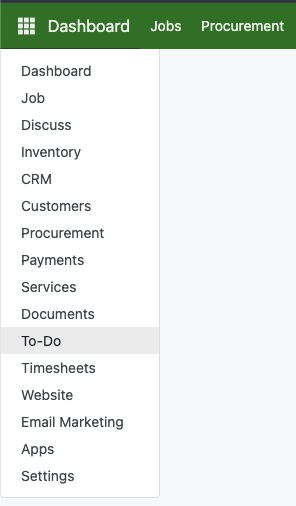
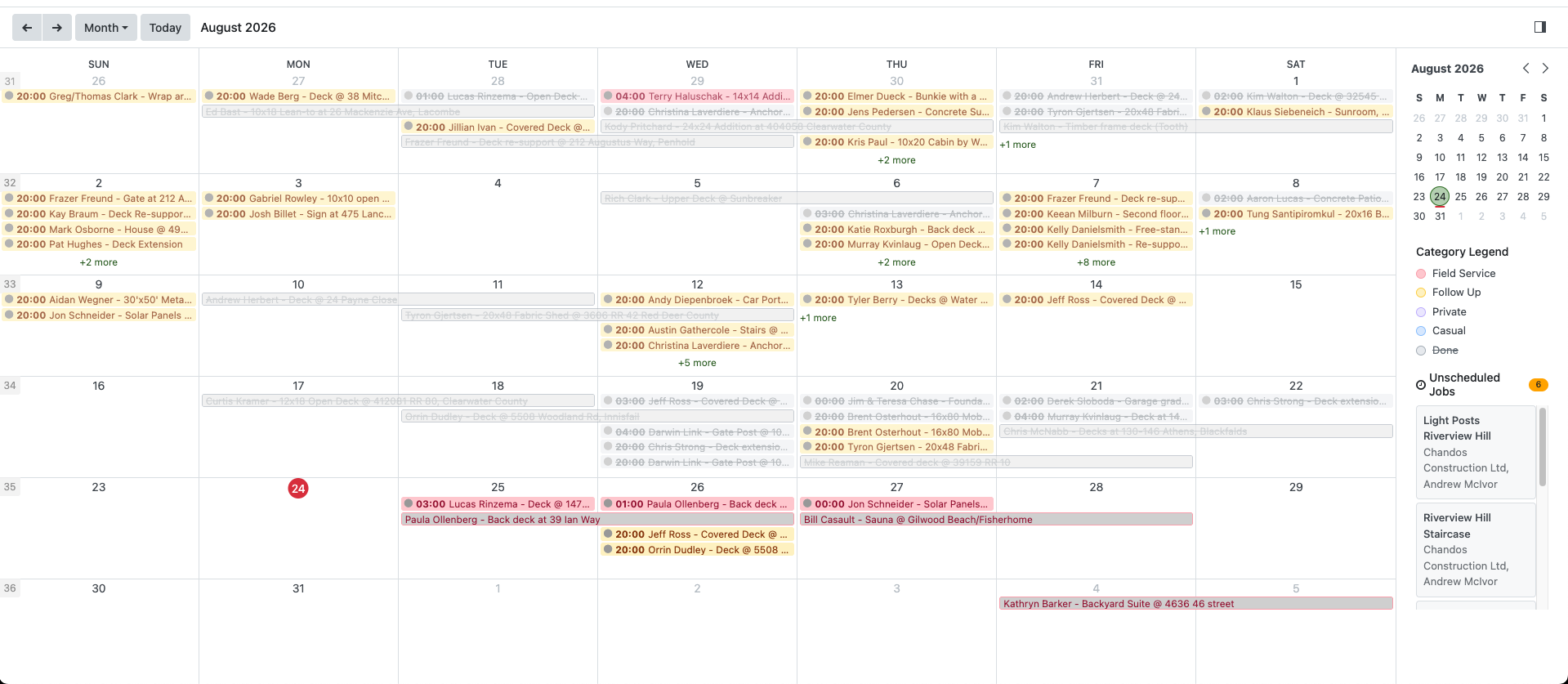
Create a new task
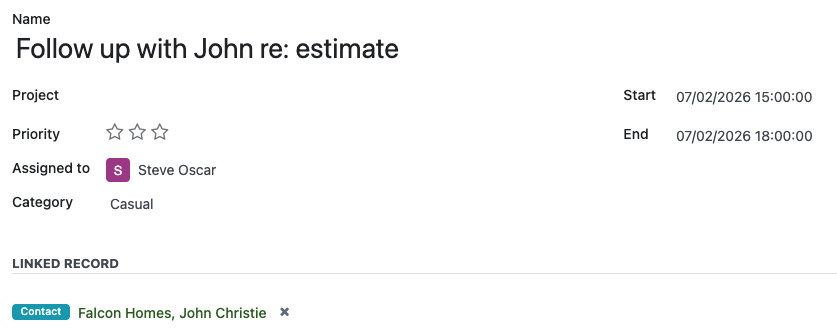
Click New. Then, give the task a clear title. For example, "Follow up with John re: estimate".
Also, choose a priority level: P1 is the most urgent, P4 is low priority. High-priority tasks are highlighted in red on the list view so they stand out. In the Assigned To field, pick the team member responsible for this task. They will see it appear in their own To-Do list or you can assign it to yourself.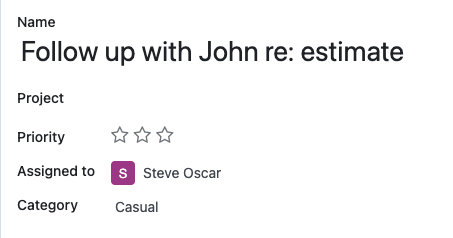
Pick the category that best fits the task: Field Service (on-site work), Follow Up (customer communication), Private (personal reminders), or Casual (general internal tasks).
Use the Start and End fields to define when the task should happen. Dated tasks will appear on the To-Do calendar view.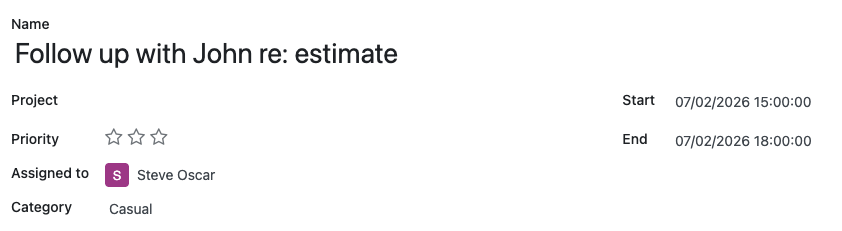
In the Linked Record section, you can attach this task to a specific job, customer, procurement order, or product. Type a few characters to search. This lets you see all tasks related to a job directly from that job's record.
Materials & Services
Materials (or also called Products) are the physical items your crew uses on a job. Things like screws, bolt, or any supply you carry in stock. Before you can add materials to an estimate or invoice, you need to set them up in the system.
Open the Materials menu
In the left sidebar, go to Inventory → Products. This is where all your materials are listed.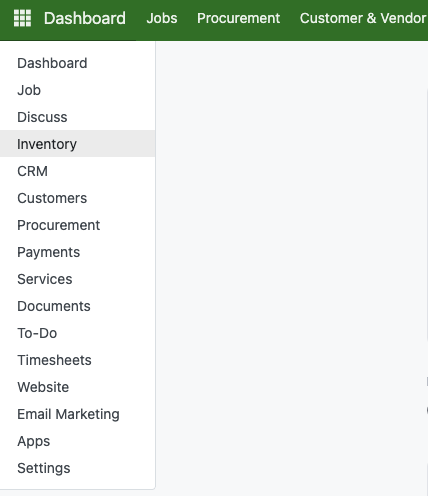
Create a new material
Click the New button at the top left. A blank form will open.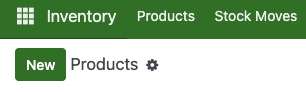
Fill in the product name
Type the name of the material in the large field at the top.
Enter the Cost, Markup Factor and Sales Price
Put how much it costs you to purchase this material by entering the price you pay per unit. Then, we have an extra field called Markup Factor. Markup Factor is the multiplier applied to your cost to set the Sales Price. For example, enter 1.45 and a $14 cost, it will becomes a $20.3 as a sales price. It defaults to the Target Markup Factor from Revenue Settings and can be changed per product, and if you type a Sales Price directly the Markup Factor updates itself to match.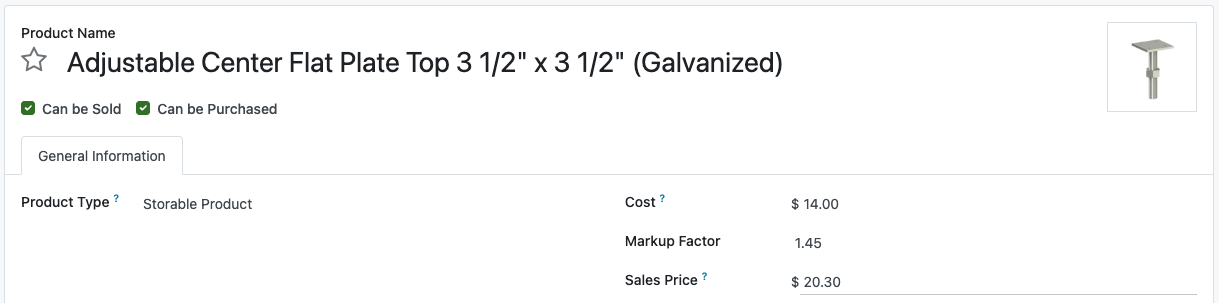
Fill the Product Type
Product Type tells the system whether to keep a quantity on hand for this item. It is set on the product form and defaults to Storable Product.Type
What it Does
Use it For
Storable Product
Tracks quantity on hand. Stock is deducted automatically when a jib is invoiced, and the product appears in the Procurement Planner and in Inventory Adjustments.
Materials you buy, hold and install : piles, brackets, fasteners
Consumable
Sold and used on jobs like any other product, but no quantity is tracked and it never appears in procurement or inventory screens.
Items you never count : shop supplies, small consumables
Service
Non-material work. No quantity, no stock, no procurement.
Labour, travel time, engineering, inspection fees
Stock Management
Use Inventory Adjustments to maintain accurate physical stock counts during inventory audits. You can update a single item or multiple products at once.
To make adjustment for single product, you can follow this steps
Open the product you want to adjust
Then, Click Adjust Inventory on the product form.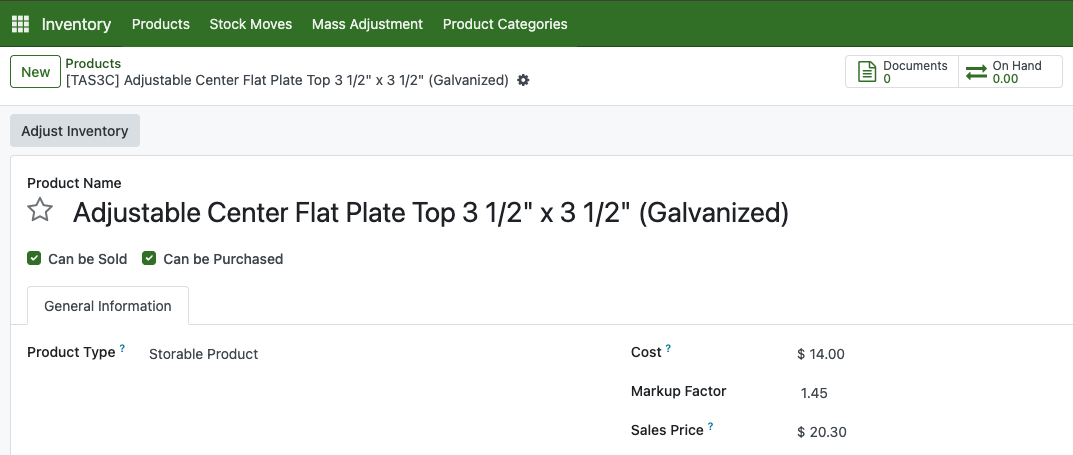
Fill the Information Needed
A pop-up window will display the product details and Adjustment Type options. By default, it is set to Set Quantity To, allowing you to input the exact updated count and add optional Notes. Alternatively, switch the adjustment type to Add Quantity or Remove Quantity to modify the stock by a specific amount. After that, Click Adjust Stock to apply it.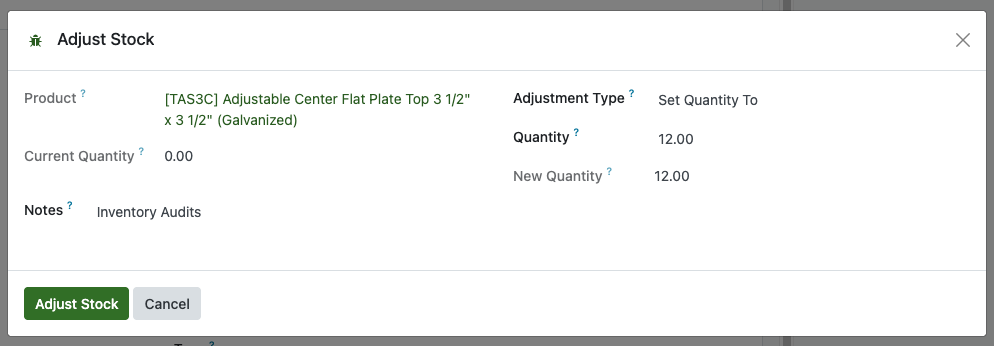
Here is the step to make multiple product adjustment.
Open Mass Inventory Adjustment
By clicking on Inventory > Mass Adjustment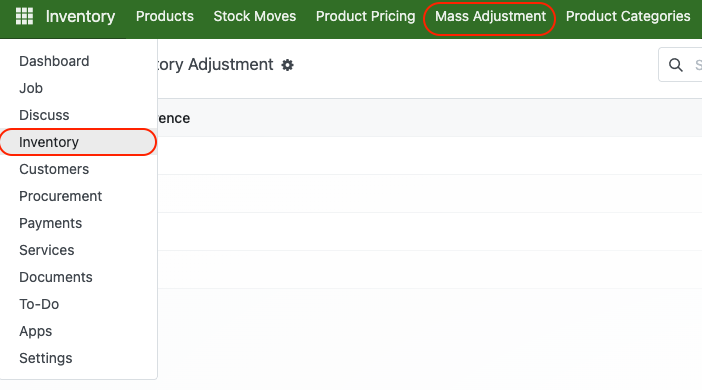
Fill in the Information Needed
You can click Load All Products to load every existing product in the system, or you can manually fill selected product you wish to adjust. You can also Import/Export from excel files as well by looking at the Help tab.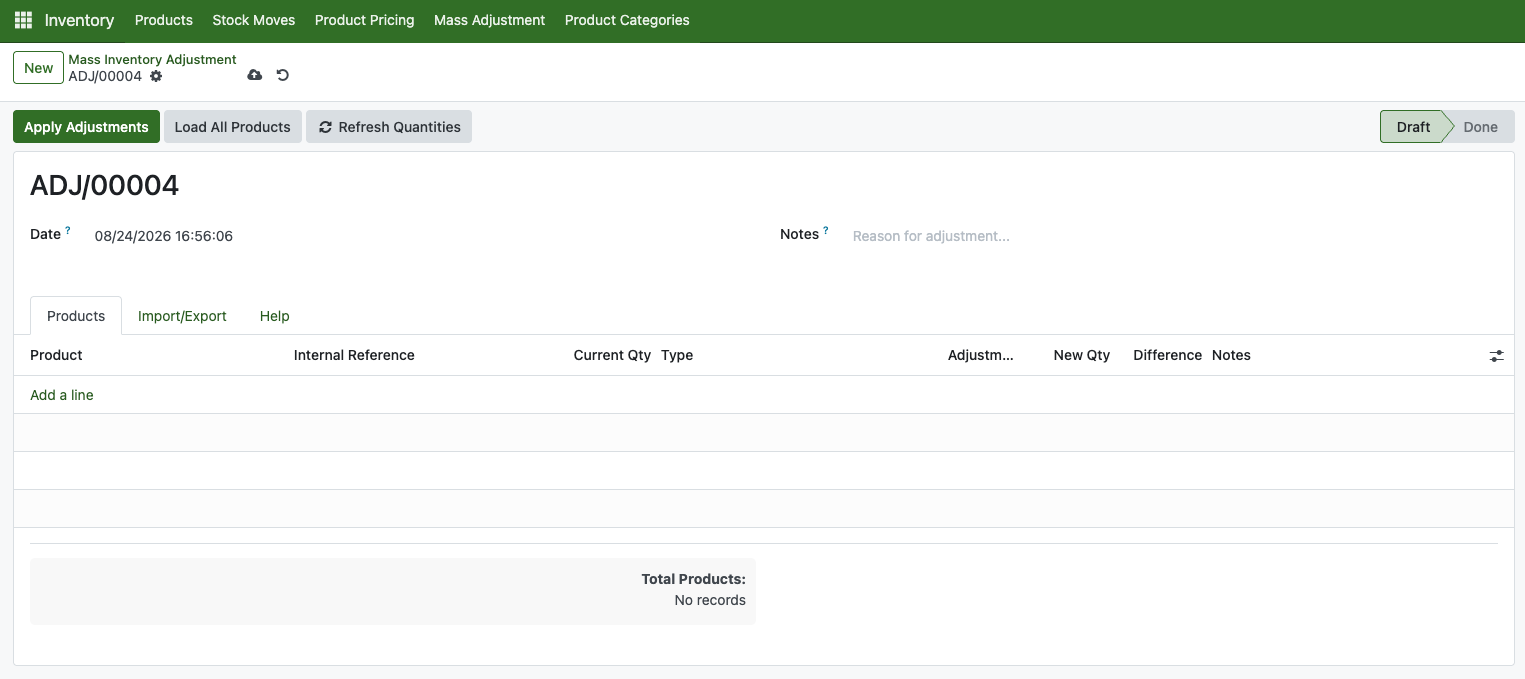
In this case, we are loading all products before proceeding to adjust its stocks. Fill in the qty inside adjustment fields.
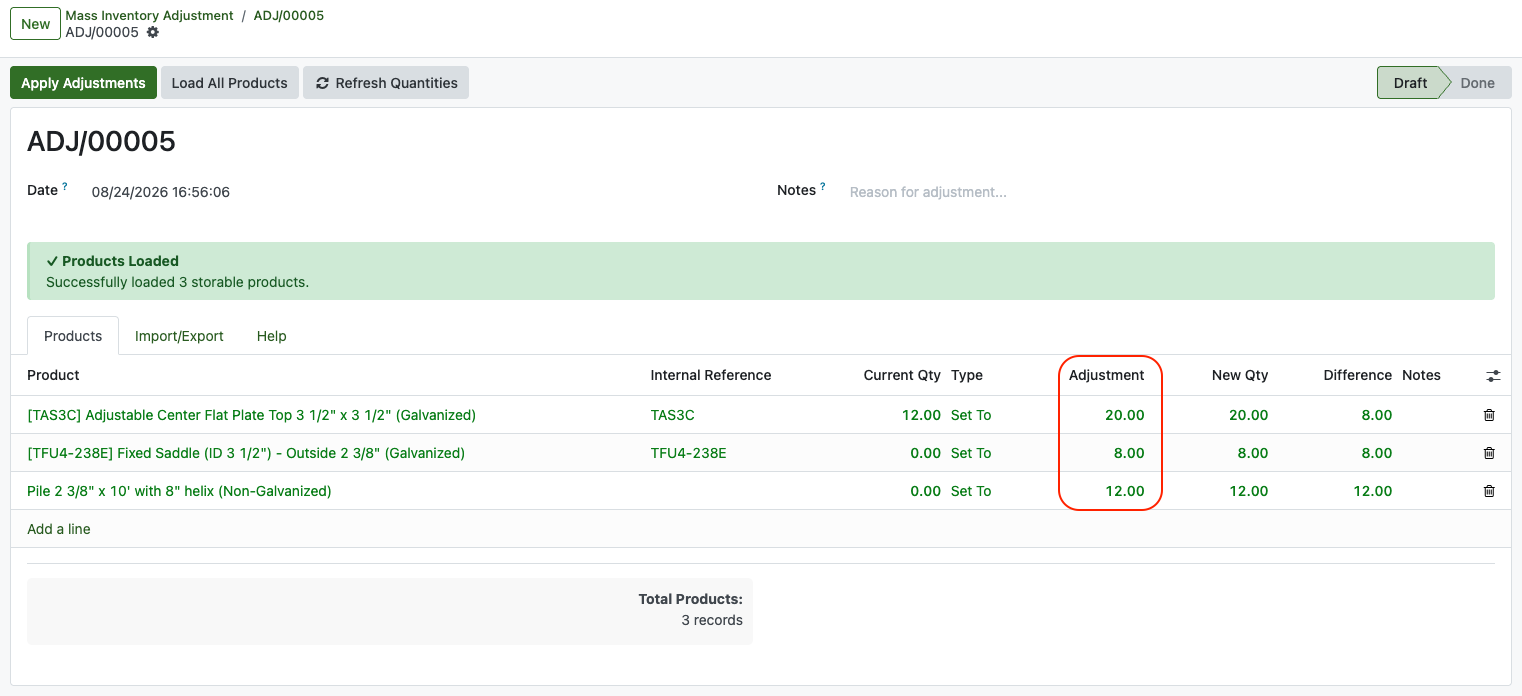
After that, click Apply Adjustment button on the header. The stock will immediately applied.
Procurement
Beyond manual adjustments, you can generate a Procurement request to order products directly from vendors. Once sent, this process allows you to track incoming inventory alongside its unit cost.
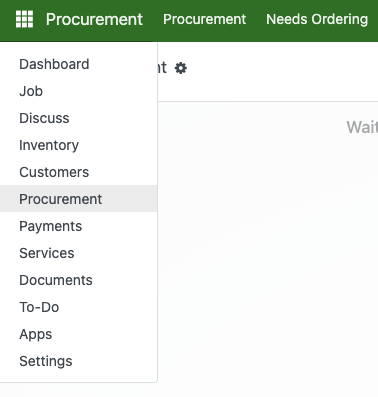
In order to create it, click Procurement in the menu.
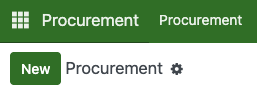
Click new
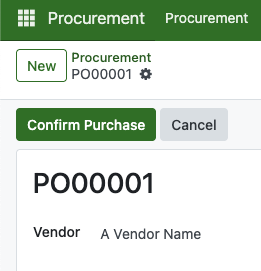
Fill the Vendor name
After that, fill the Order lines with the product you wish to acquire from the vendor.
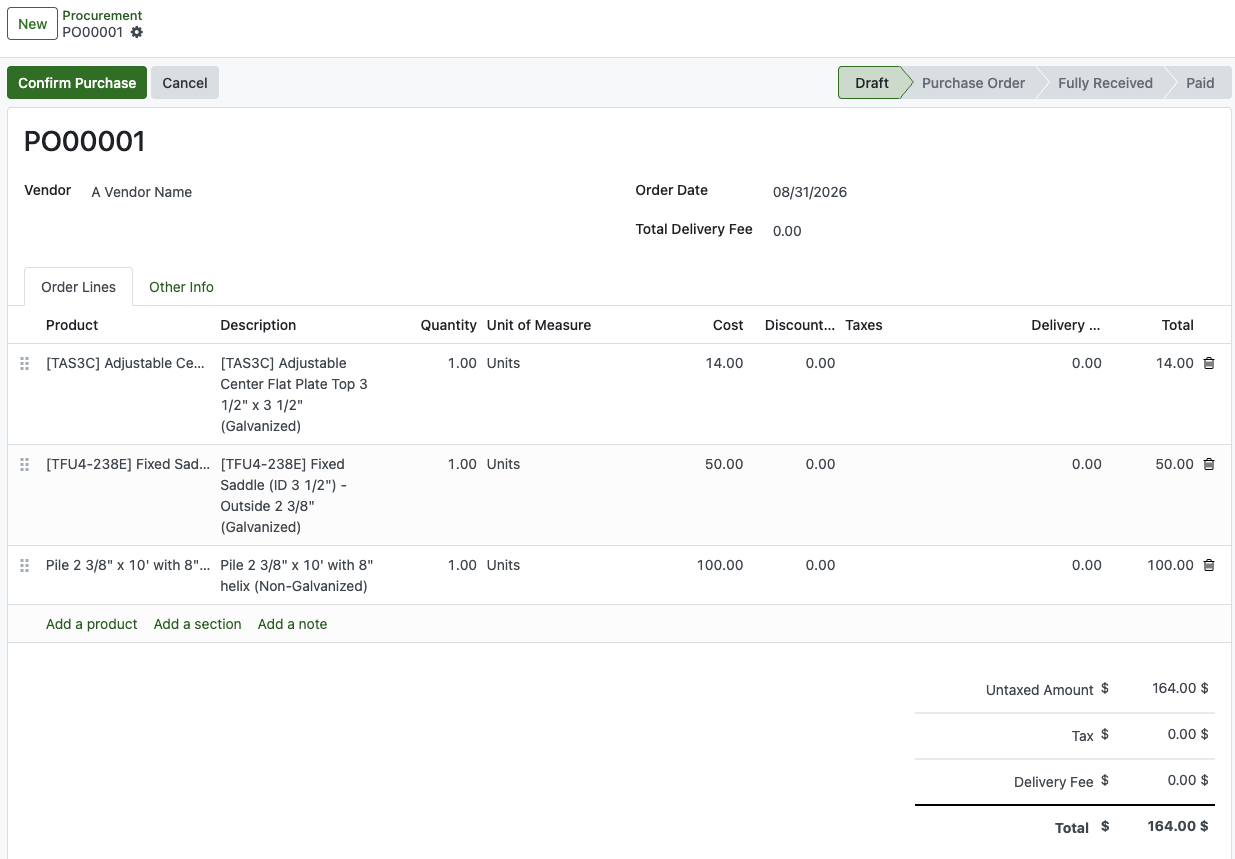
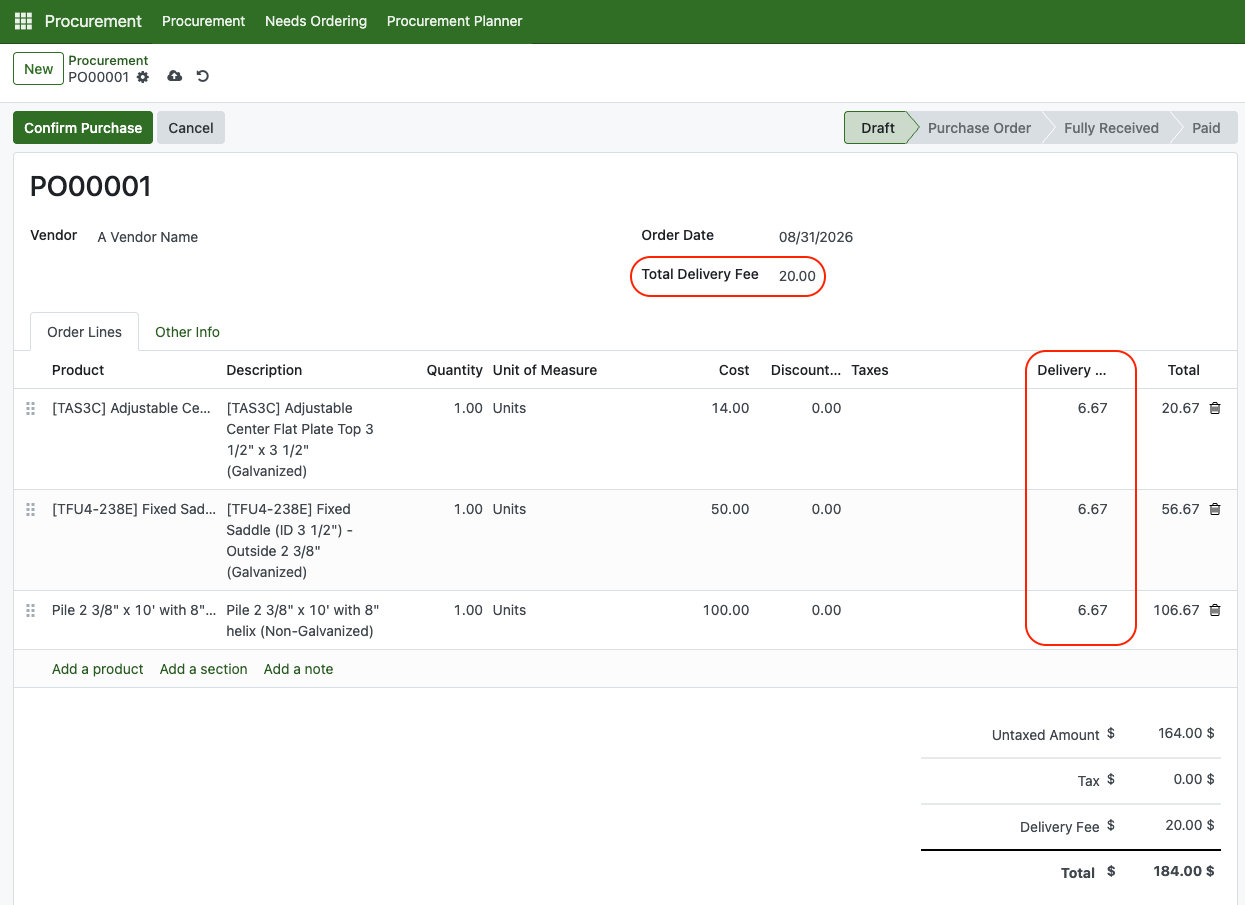
There's also delivery fee for each product which you can fill, or you can fill the total at the top instead
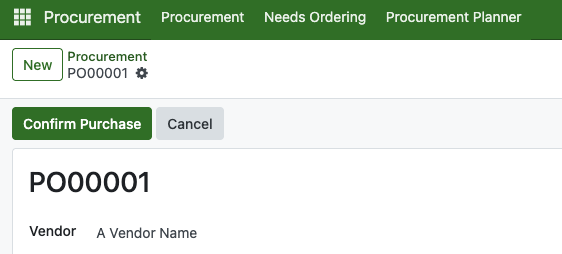
After verifying all is well, click confirm purchase to escalate the draft to purchase order.
The next step is to make sure you send the procurement document to the vendor by clicking send purchase order. The pop up will show with attachment to it.
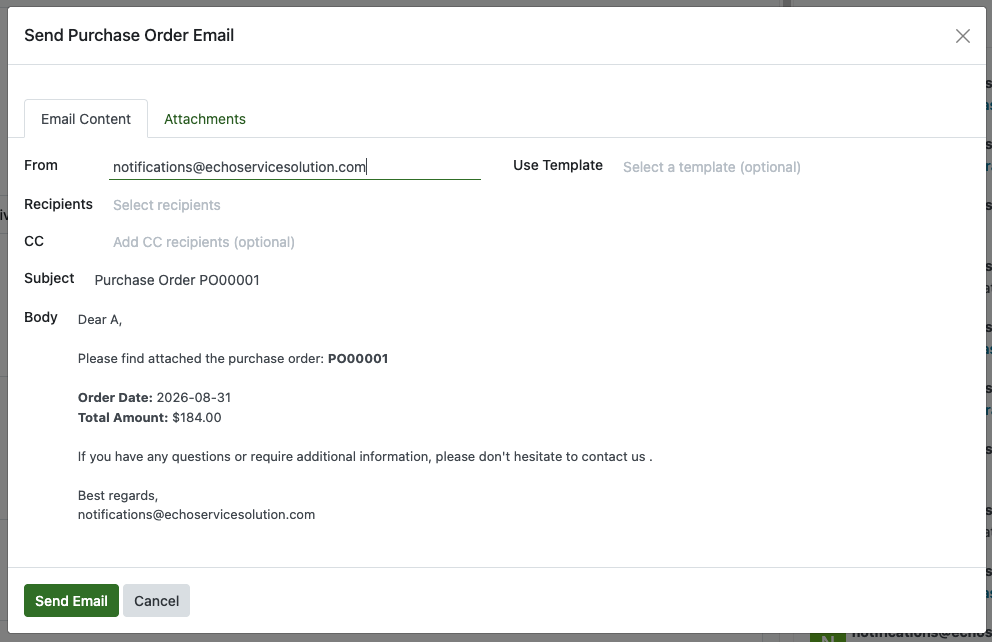
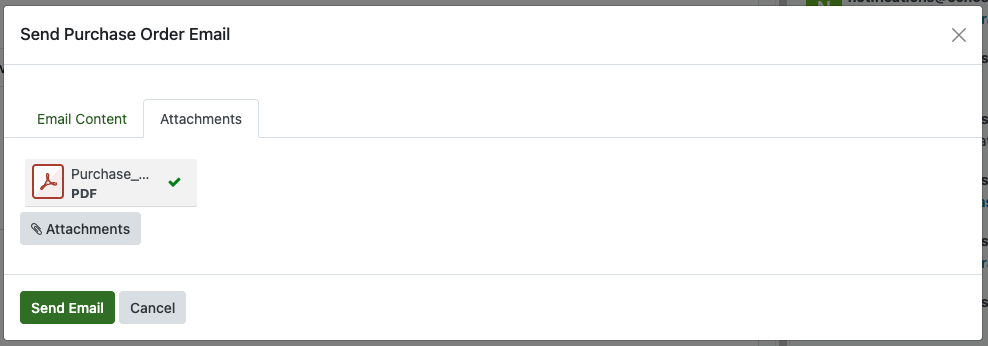
You can preview the attachment by clicking it. It will download it to your computer. You can also change the product description in the product lines if you need to.
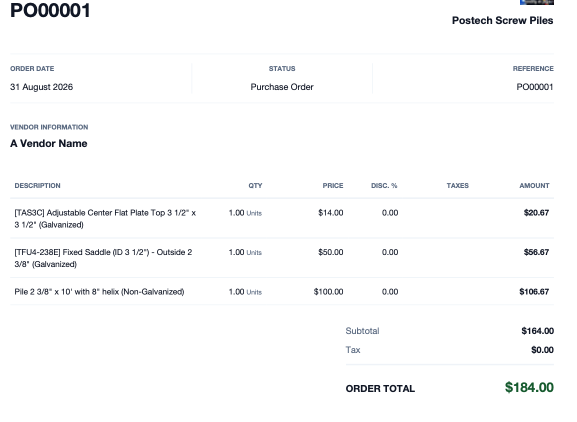
Once the vendor ships physical goods, click Receive Products to log them. Enter the Receive Qty only for items that have actually arrived.
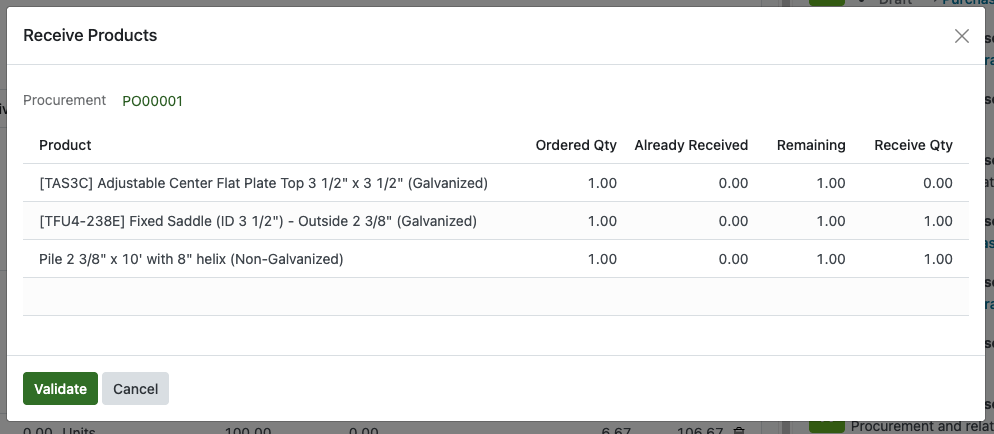
If you receive only a portion of the total order, the procurement status will update to Partially Received until everything is received.
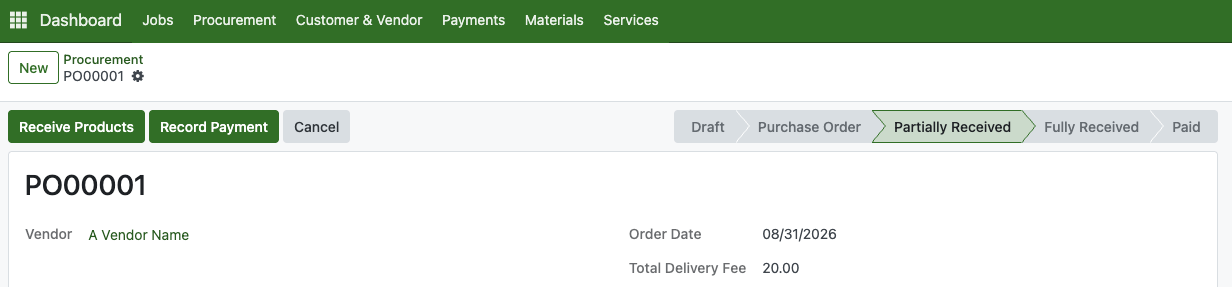
Click Record Payment to process the transaction. In the pop-up window, select the payment date and payment method.
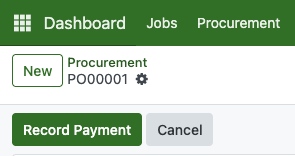
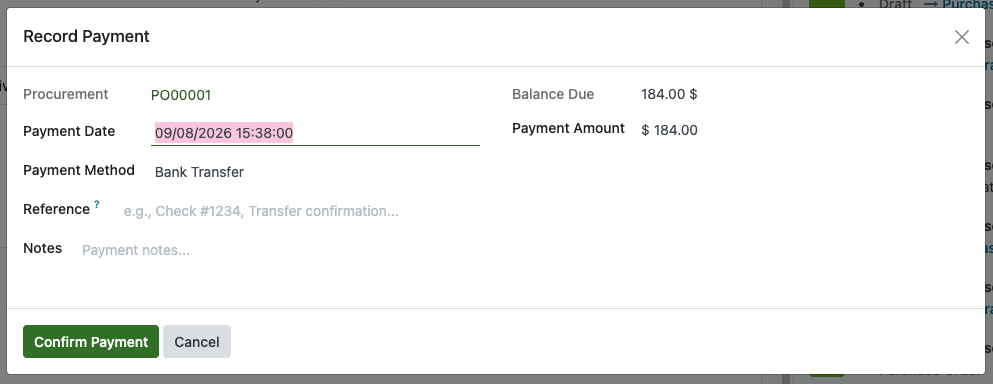
Click Confirm Payment to update the procurement status to Paid. A shortcut link will appear, allowing you to view all payment records associated with this procurement.
Managing And Working On Jobs
This core hub is your primary workspace. Use it daily to organize, track, and complete all your assigned jobs. You can access "Job" from the main menu to open it.
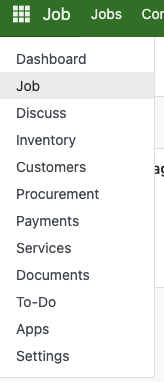
Jobs will separated by their own section status as image below

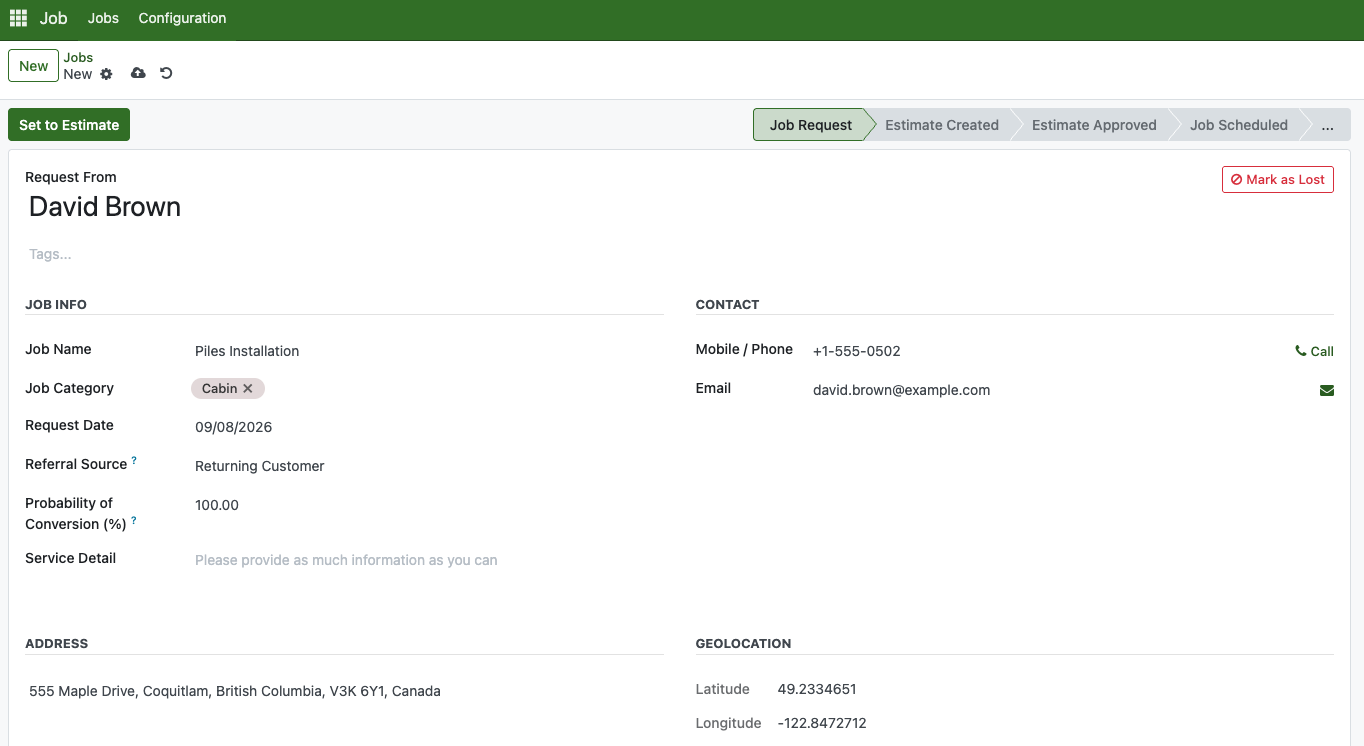
You can create a new job by clicking the New Button
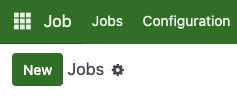
Enter the customer details, including the job name, request date, and any other relevant information.
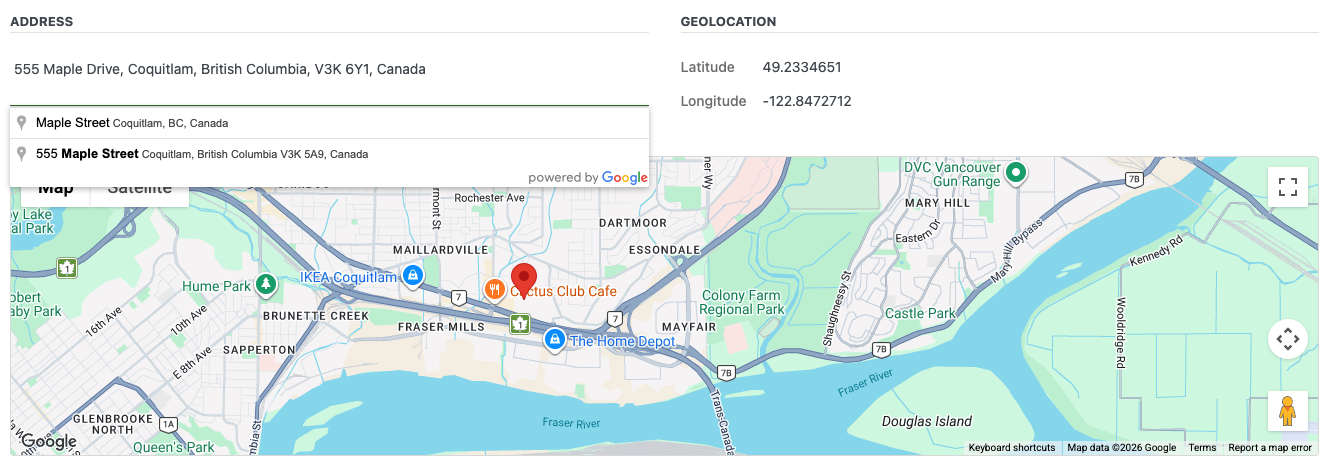
If you have not already added the address under Customer Info, you can enter it here.
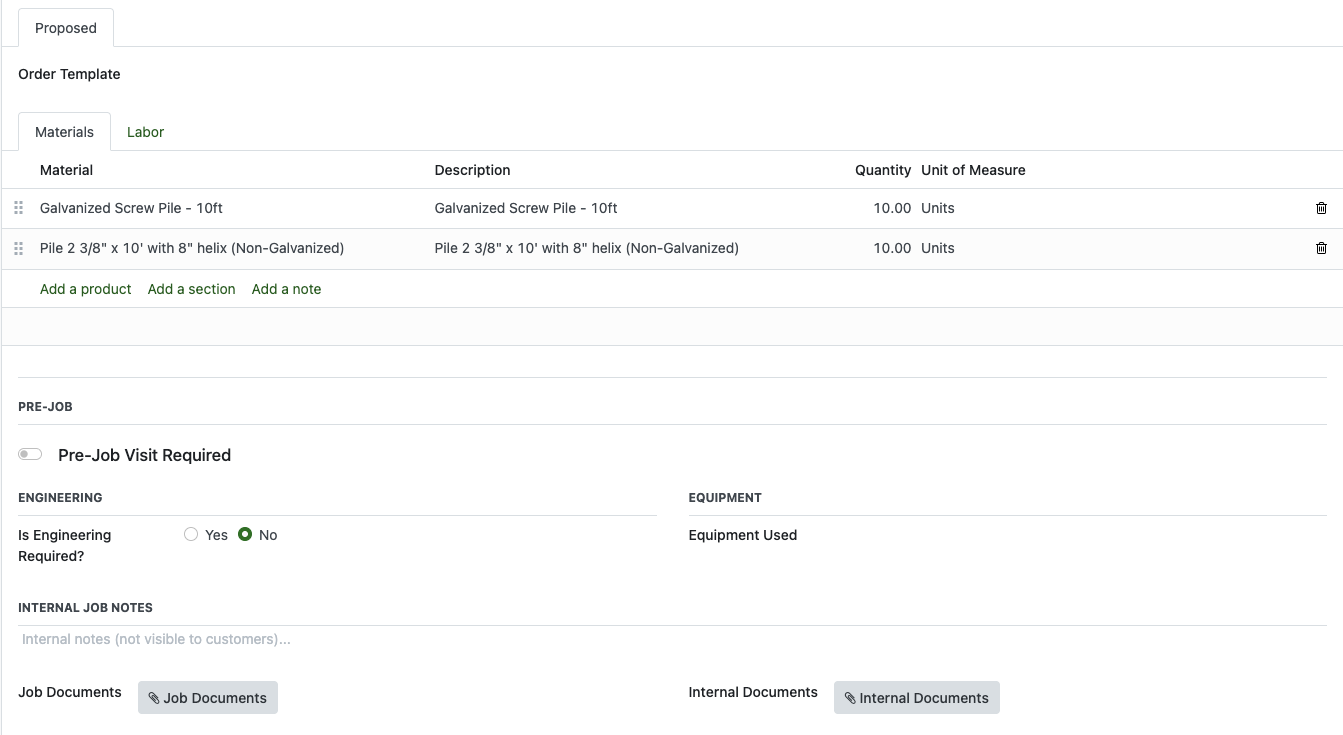
Next, fill in the Materials and Labor sections, along with any other required details.

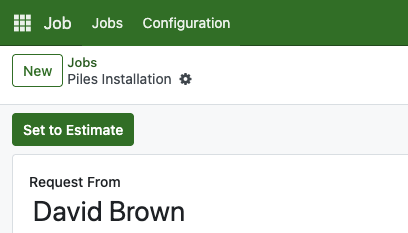
Once all details are complete, convert the record to an Estimate. An Estimate represents a finalized proposal ready to be sent to the customer. Its technically similar to a quotation, outlining the scope of work and estimated costs.
Once converted to an Estimate, the itemized pricing will display. You can manually adjust prices directly in the table, or set default pricing on the product setup page so future estimates populate automatically.
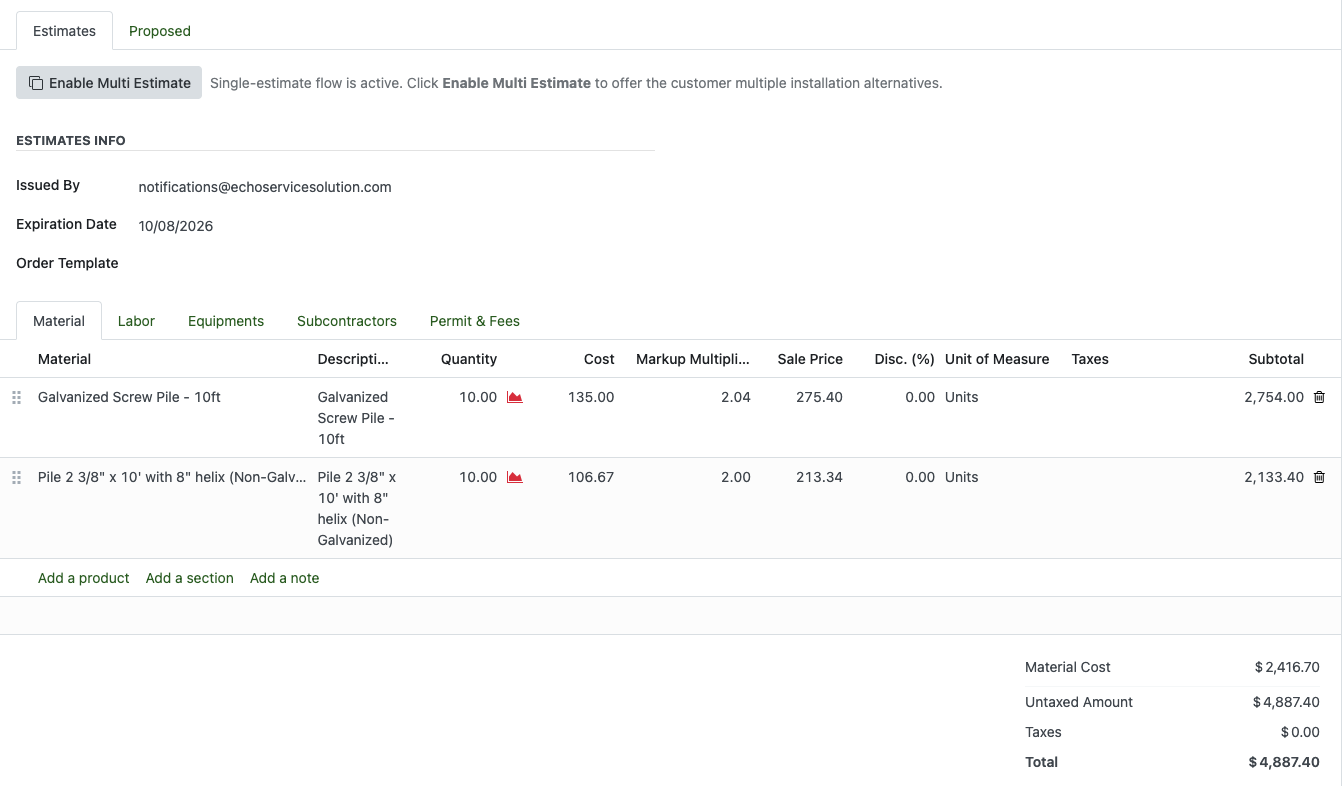
Ensure the Expiration Date, Material, and Labor fields are accurately completed. You can also add Additional Equipment, Subcontractors, or Permit Fees if applicable.
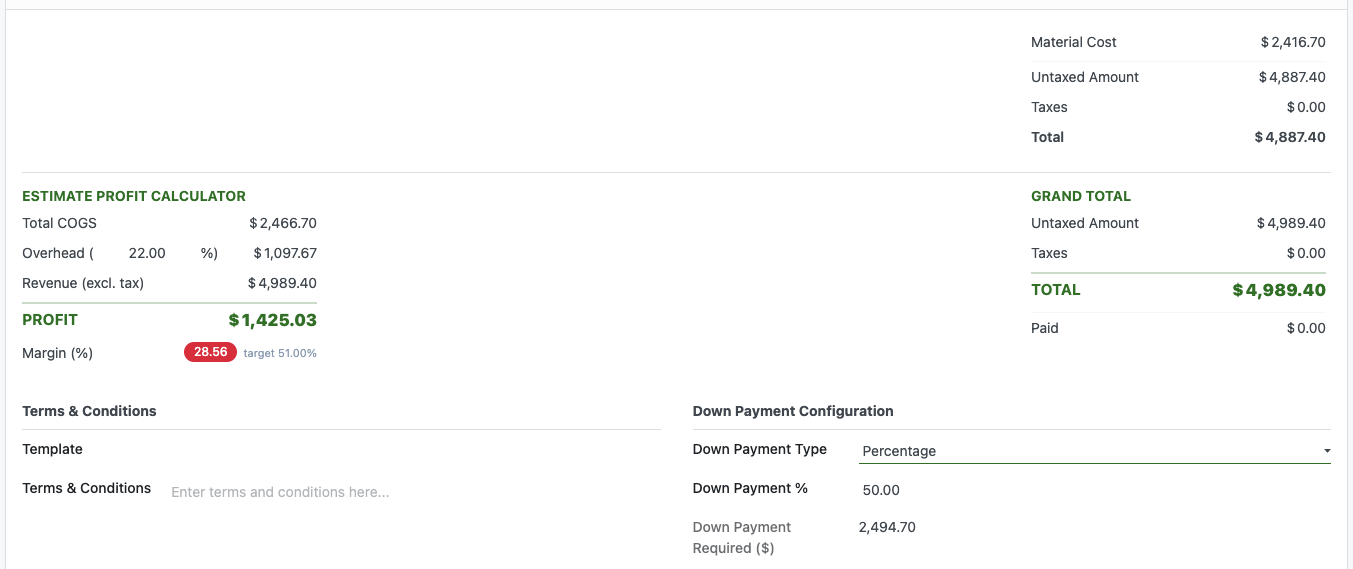
Scroll down to view the calculation summary and available down payment options. If the customer pays a down payment, the system automatically validates the job (covered in detail in the next section).
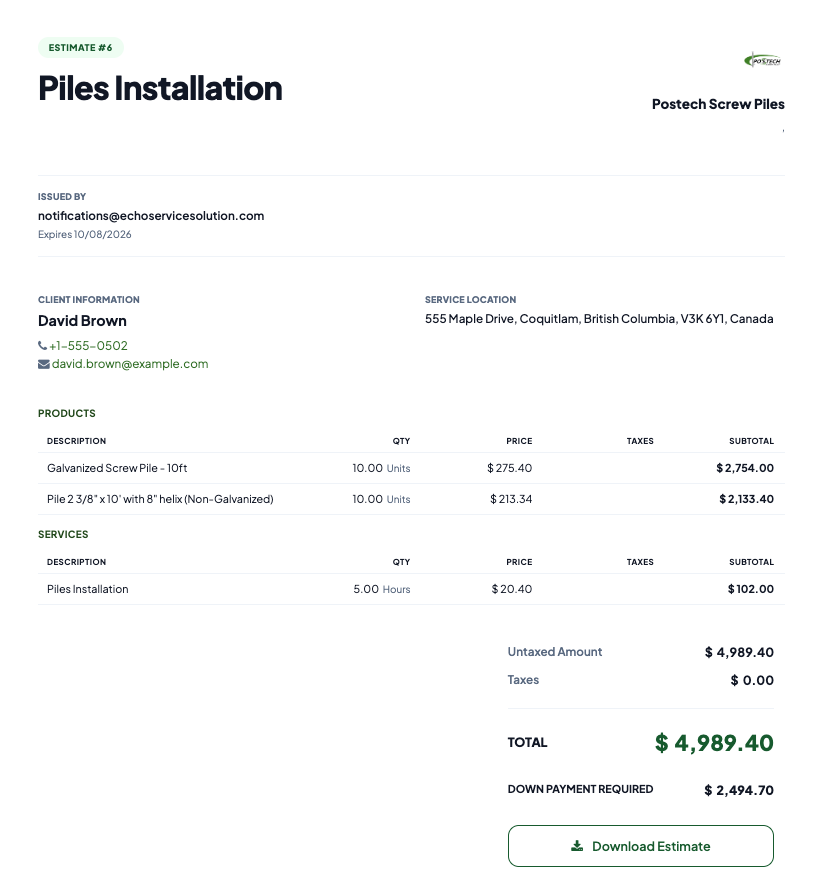
Scroll back to the top and click Preview Estimate to view how the document will appear to the customer. The preview is rendered using your selected template.
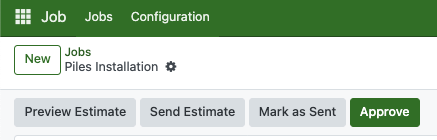
Click Send Estimate to email the document to the customer. They can review the estimate and approve it by paying the down payment using the link provided in the email. Funds will be deposited into your Stripe account, which you can then withdraw to your bank account later on.
If your customer decided to pay in cash, you can also manually mark the estimate as approved job by clicking Approve button.
Check the Record Manual Payment box to manually enter the payment amount.
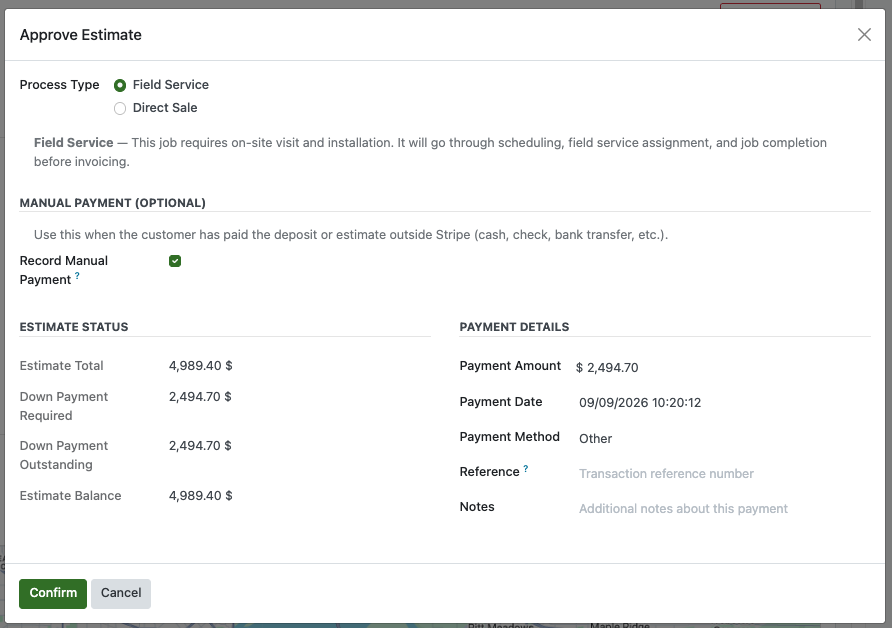
In process type, make sure its either Field Service or Direct Sale. Field Service will requires on-site visit and installation. It will go through scheduling, field service assignment, and job completion before invoicing. With Direct Sale, you can sell products or services without field service visit. All estimate quantities will be carried over to the invoice immediately, stock will decreased when invoice are fully paid. In our case, we will be using Field Service.
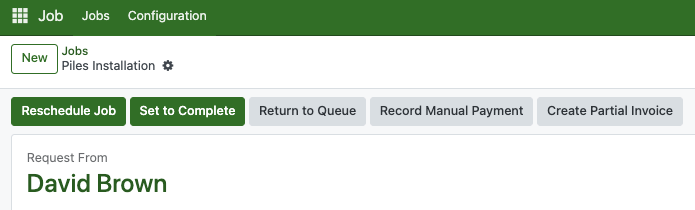
The record status is now Estimate Approved. Click Queue Job to update the status to Job Scheduled. From here, you can also generate a partial invoice or record a manual payment directly.
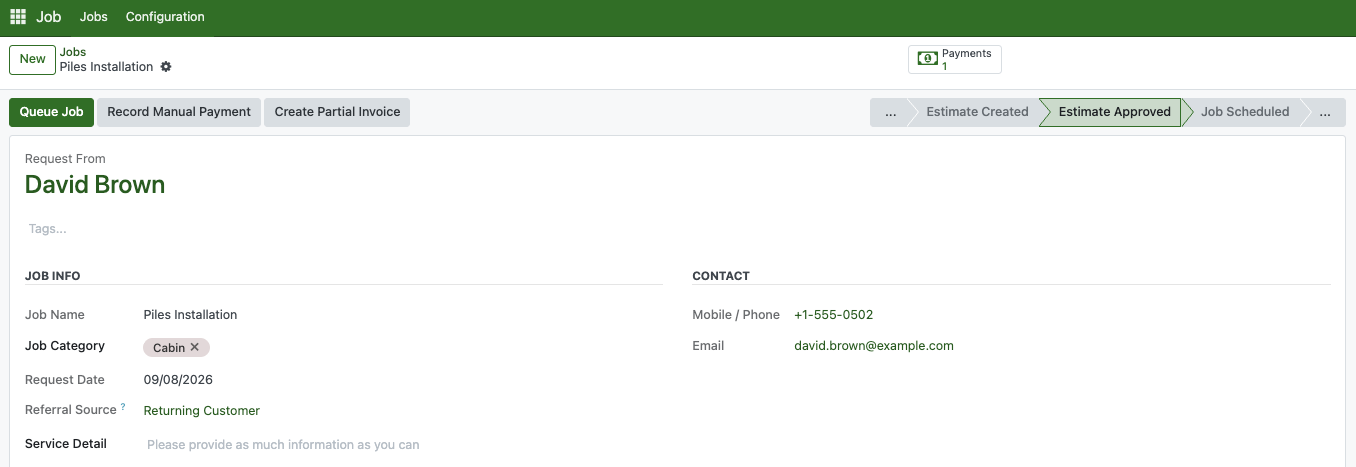
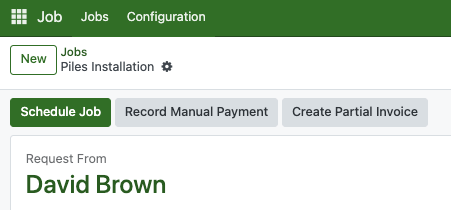
The job is now queued and ready to be scheduled. Click Schedule Job to assign dates and times for your team to begin work.
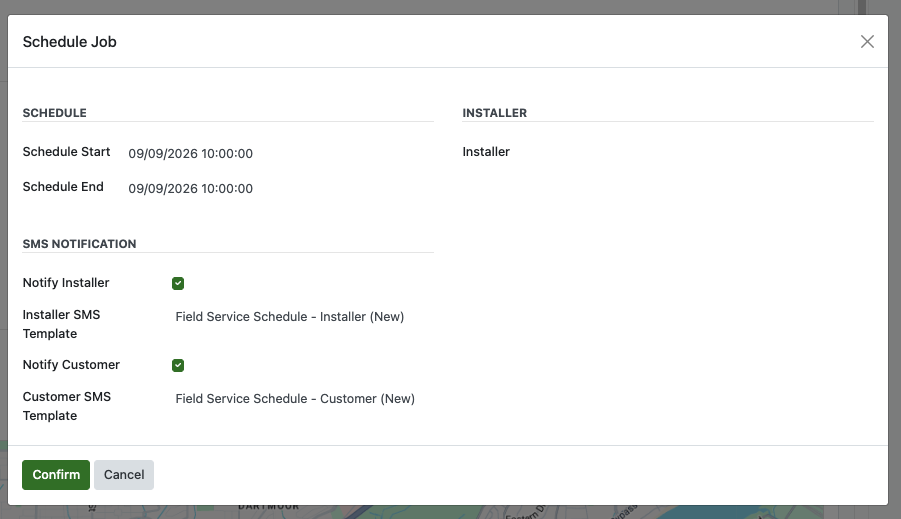
You can also notify your customer and crew members by sending automated notifications. Make sure to fill Installer name on the dropdown before clicking confirm.
The job status is now Job Scheduled. Click Reschedule Job at any time to adjust the work dates, or click Return to Queue to reset the status to unscheduled.
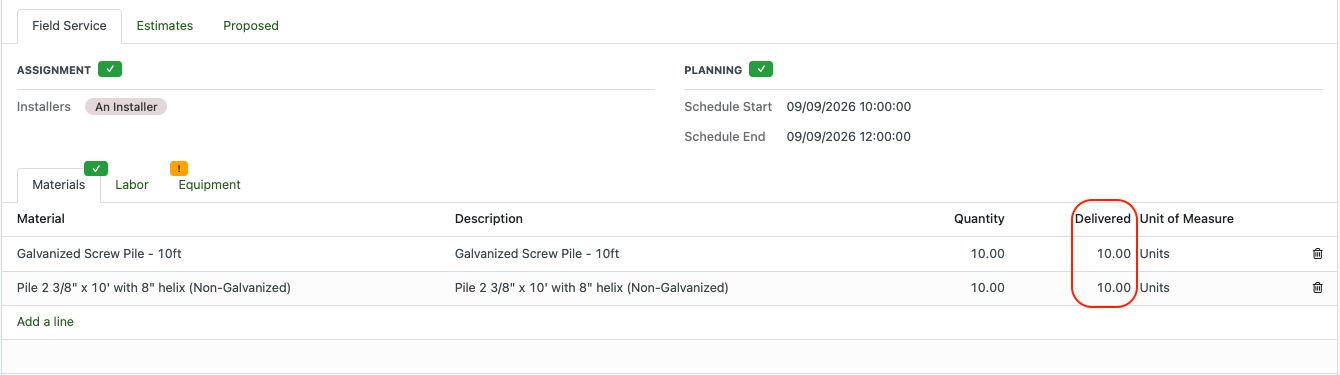
Scroll down to the table section and select the Field Service tab. Enter the actual quantity used in the Delivered field. The system will calculate final invoicing based on this updated quantity, adjusting automatically whether more or fewer items were used.

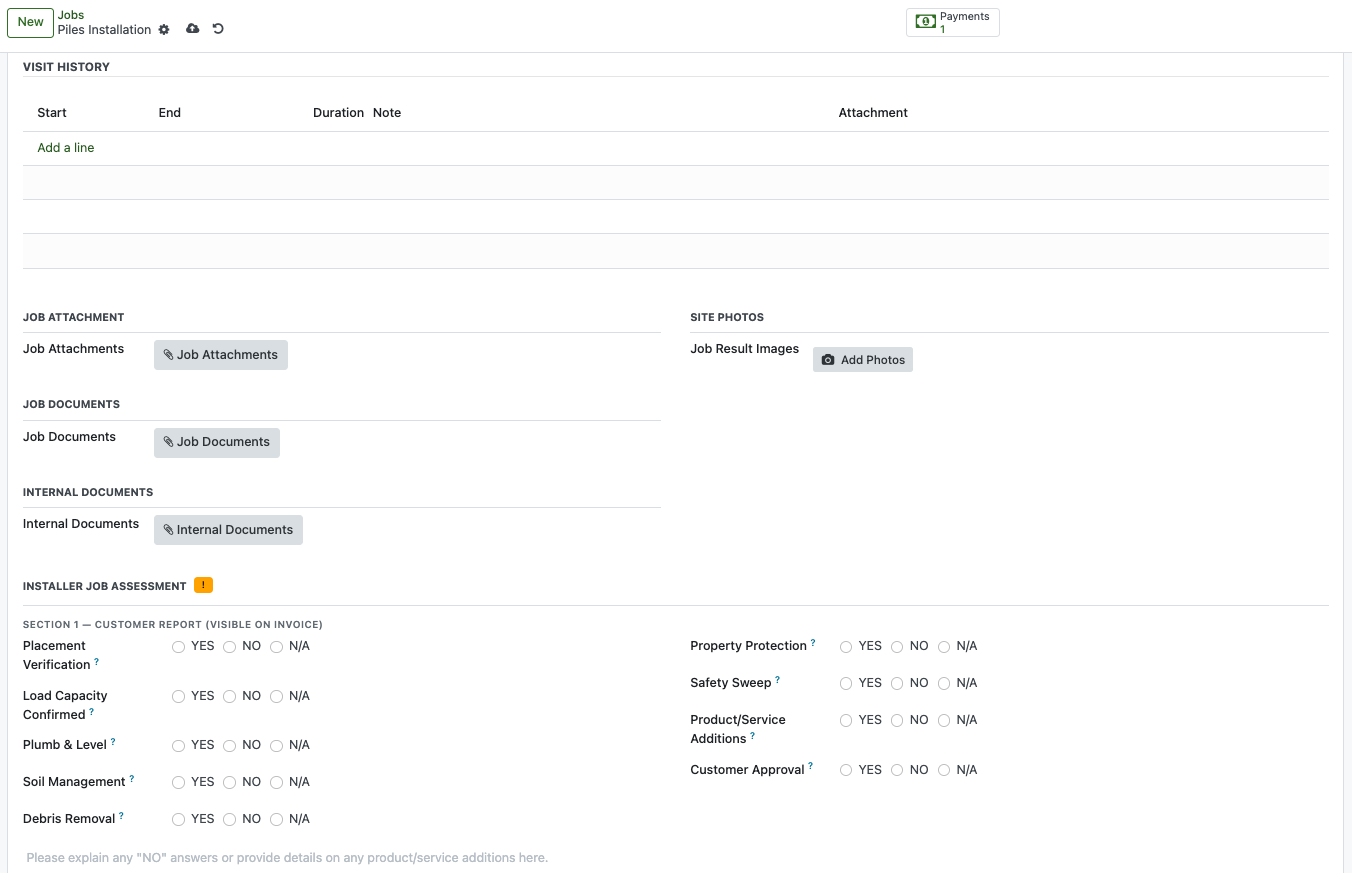
Scroll down to review all required work details. Fields marked with an exclamation point (!) are mandatory and must be completed. Once it completed, it will turned into green checkmark.
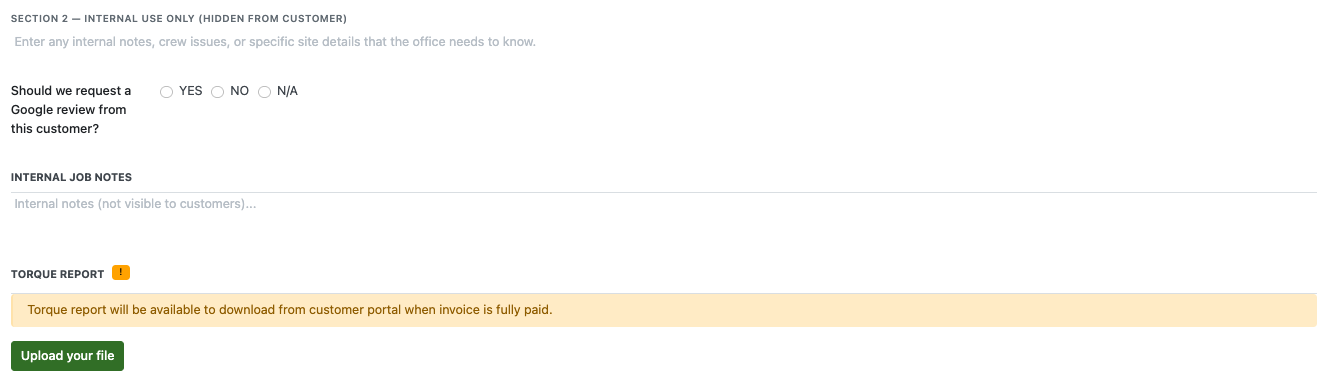
After everything is done, set the job done by clicking the button on the top header. The status is now becoming Job Completed.

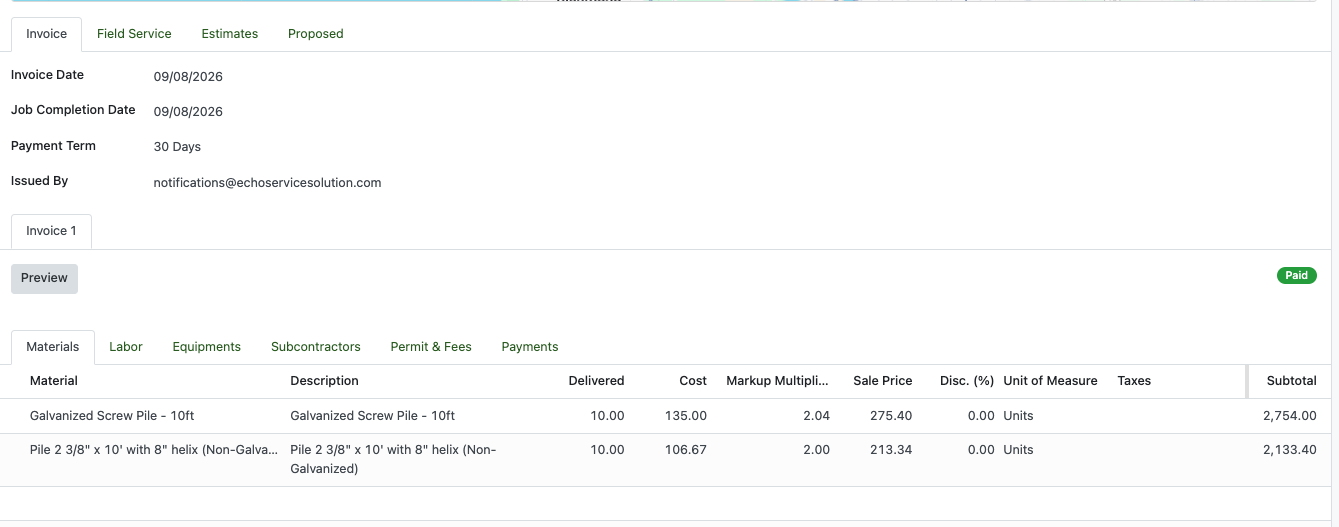
Click Create Invoice to generate the final bill. Total costs adjust automatically to reflect Field Service quantity updates and deduct any prior down payments. Scroll down to the Invoice tab (shown in the image below) to set the invoice date and complete any remaining details.
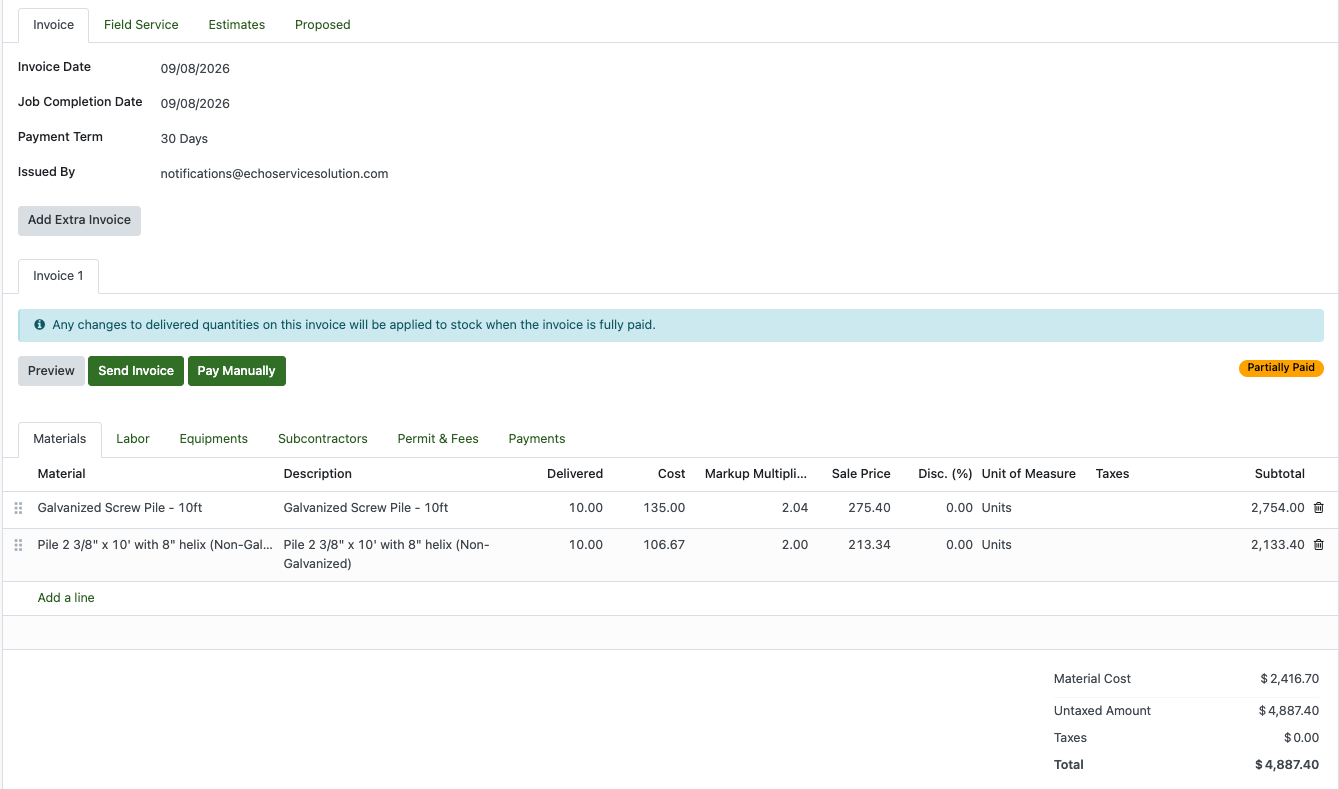
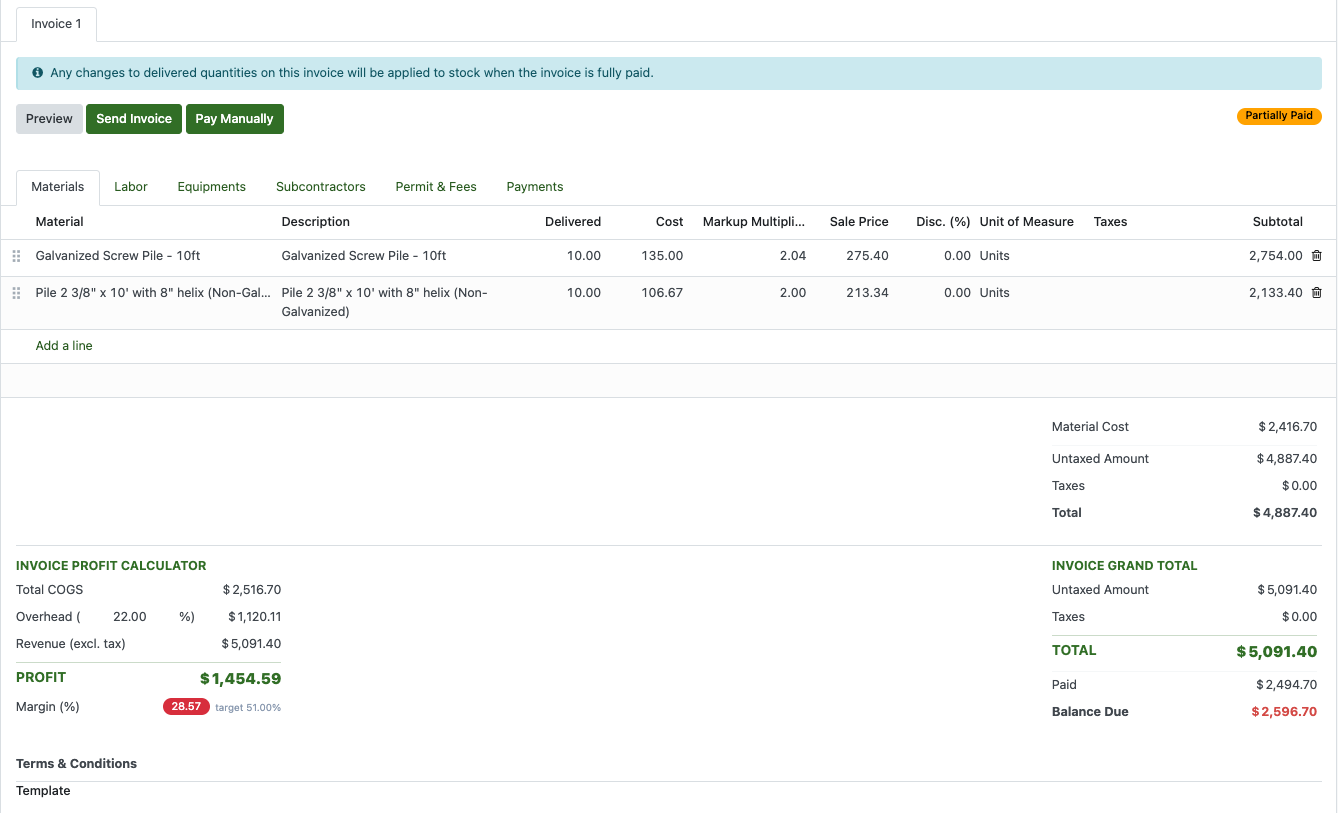
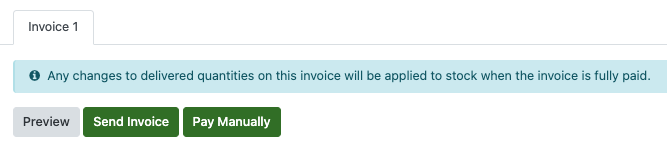
Click Preview to view how the invoice will appear using your selected template, similar to a sales order preview. Once verified, click Send Invoice to email it to the customer with a direct Stripe payment link. The funds will go into your Stripe account. But If the customer pays with cash or check, click Pay Manually to record the payment.
In our case, we are going to Pay Manually now. Click the Pay Manually Button.
Set the amount of how much customer is paying, then click Confirm Payment.
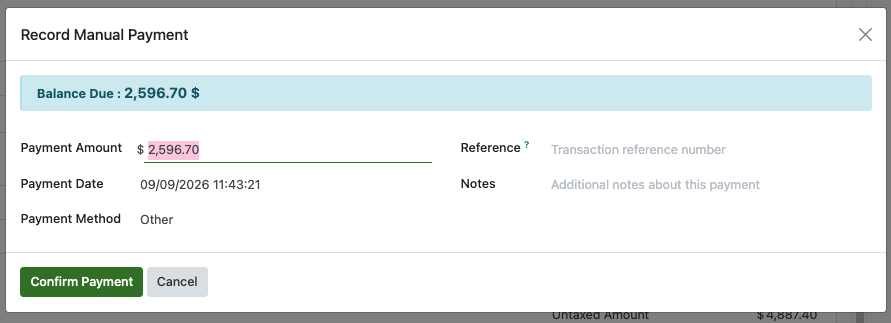
If the payment is full, the invoice status will turn into Paid along with the job status. At this point, the job is done.

Now, the very last step, you can send Torque Report and Post Job Email
Can't find what you need?
Check the latest changes, or email us and we will point you in the right direction.